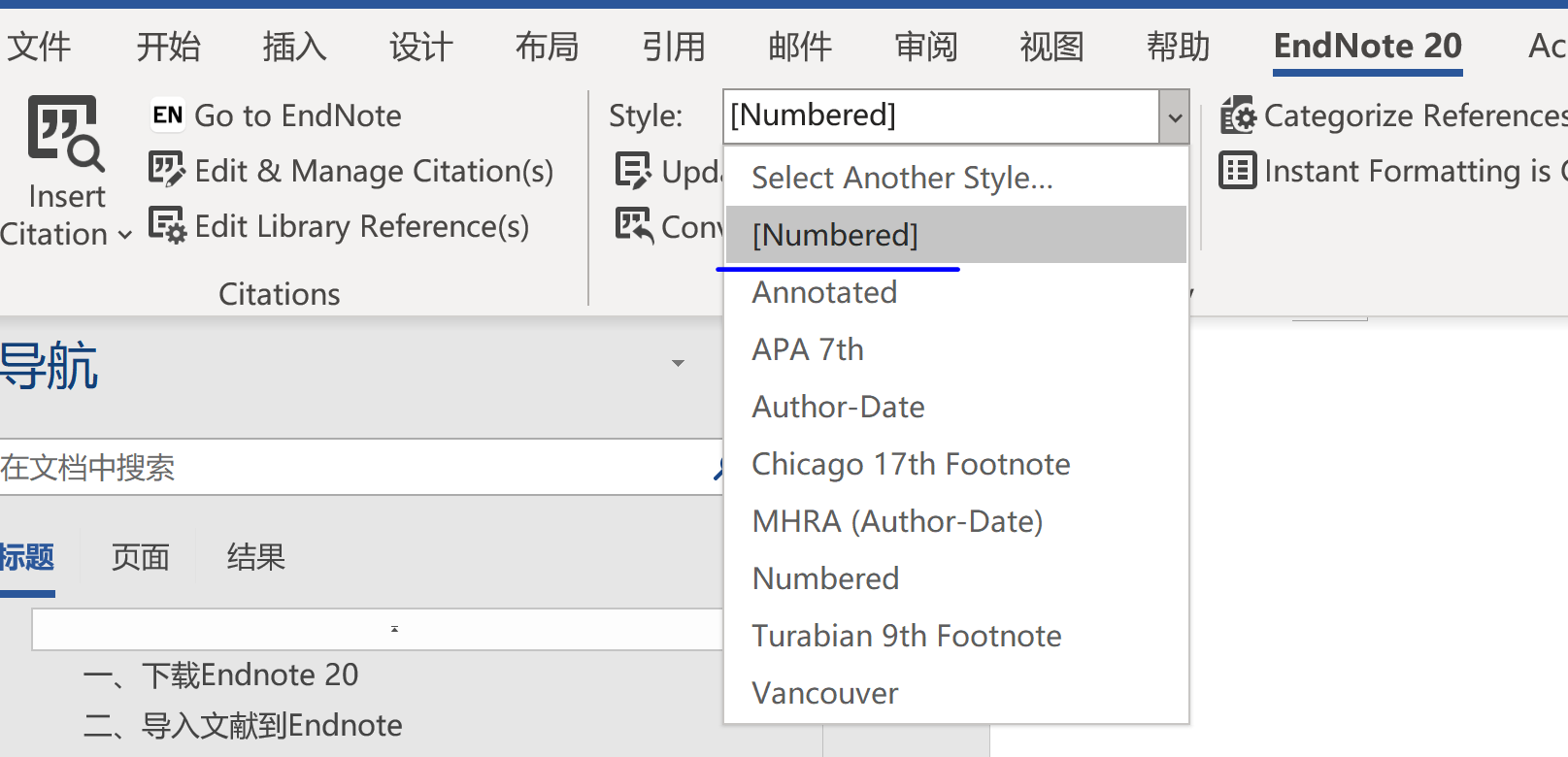
EndNote Reference Management
©️ Copyright 2025 @ Liu Theory Lab
Author:
Ziyue Lin 📨
Date:2025-10-20
Lisence:This document is licensed under Attribution-NonCommercial-ShareAlike 4.0 International (CC BY-NC-SA 4.0) license.
I. Download EndNote 20
All examples below are based on EndNote 20.
II. Import References into EndNote

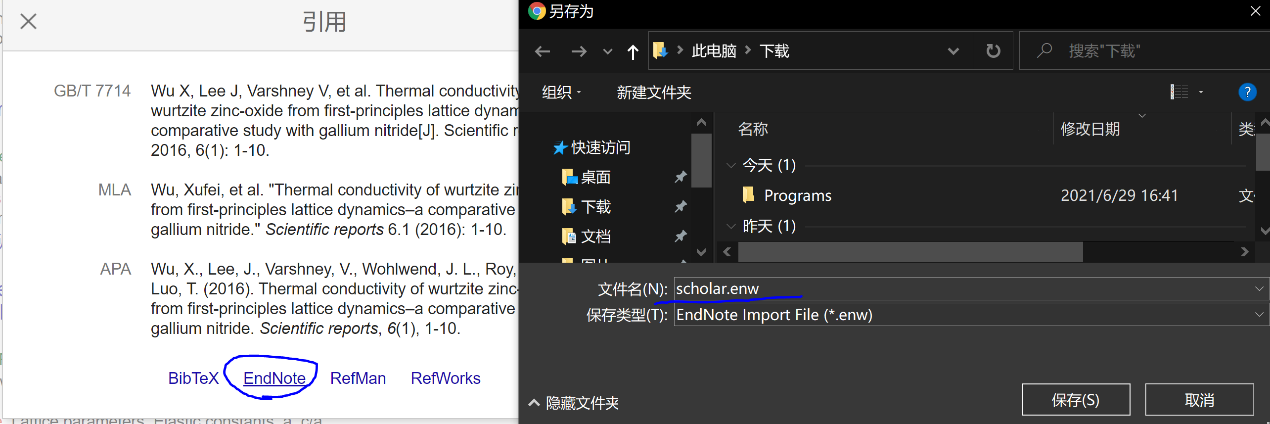
Using Google Scholar as an example, click the citation symbol to download references in various formats.
For instance, you can download the *.enw file for EndNote import, as shown in the figure.
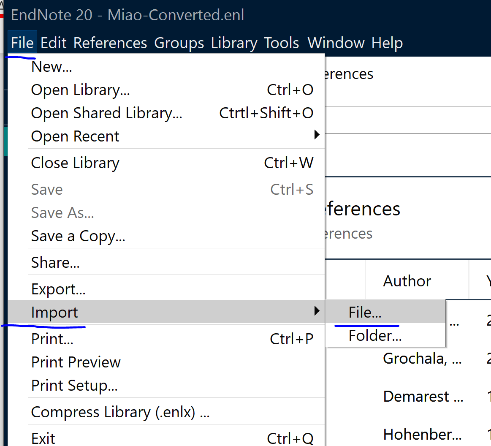
In EndNote 20, navigate to:
This will allow you to import the .enw file you just downloaded.
To import a folder of files, click the folder icon in the dialog box.
III. Edit References
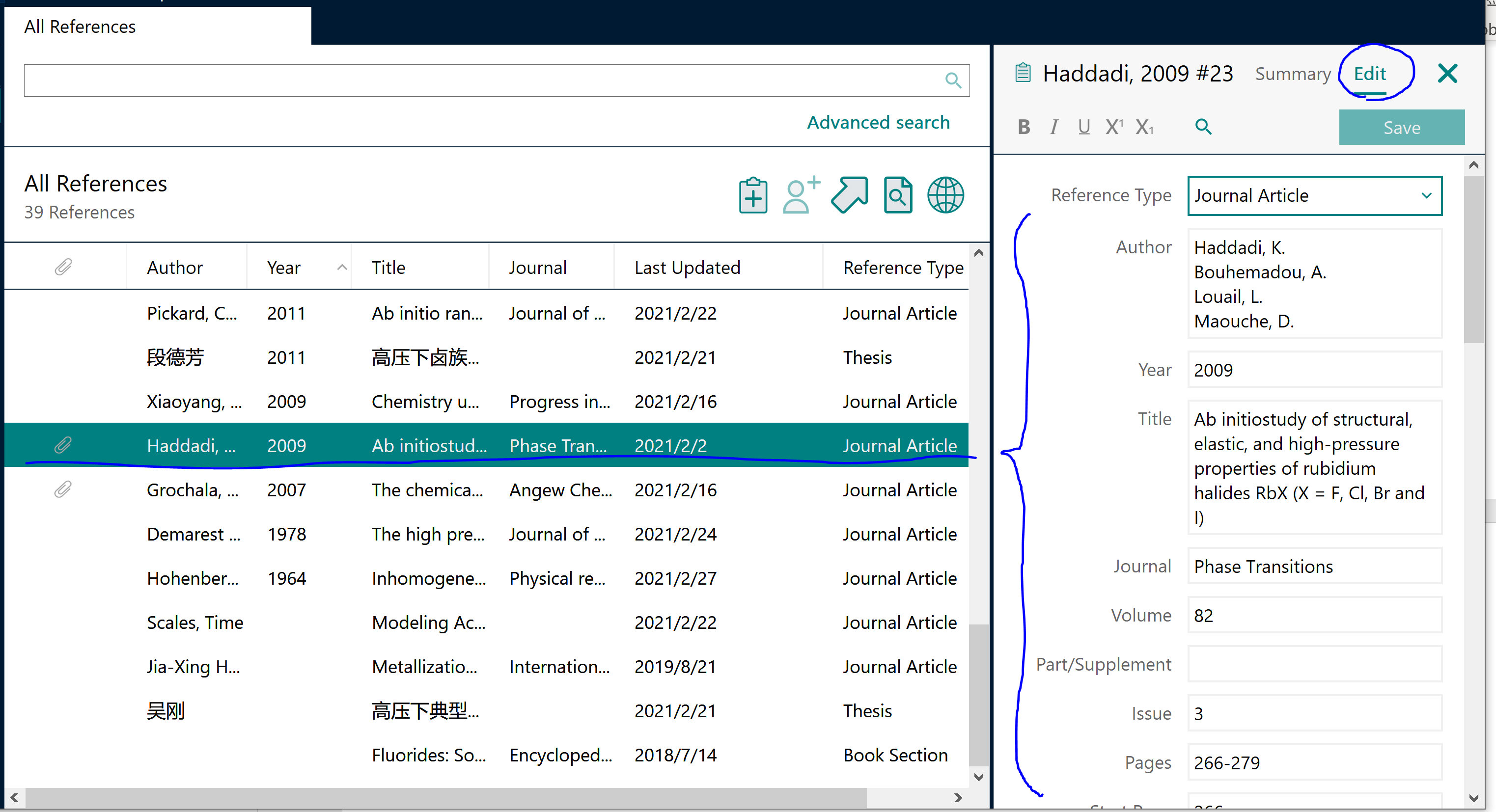
After selecting a reference, you can edit its information in the Edit tab on the right.
Note
When you need to modify a reference after inserting it, be sure to make the changes in EndNote,
do not edit it directly in Word. Otherwise, your changes will be reverted to the original information from EndNote when the citations are updated.
IV. Insert Citations
After installing EndNote, the EndNote add-in will automatically load in Word. (If it doesn't appear, please try reinstalling EndNote).

- Place your cursor where you want to insert the citation.
- Click
Insert Citation, search by keyword, and select the target reference (which must already be in your library).
After insertion, the reference details (author, title, etc.) will be automatically generated in the bibliography at the end of the document.
V. Edit Citation Styles
-
In the EndNote application, navigate to:
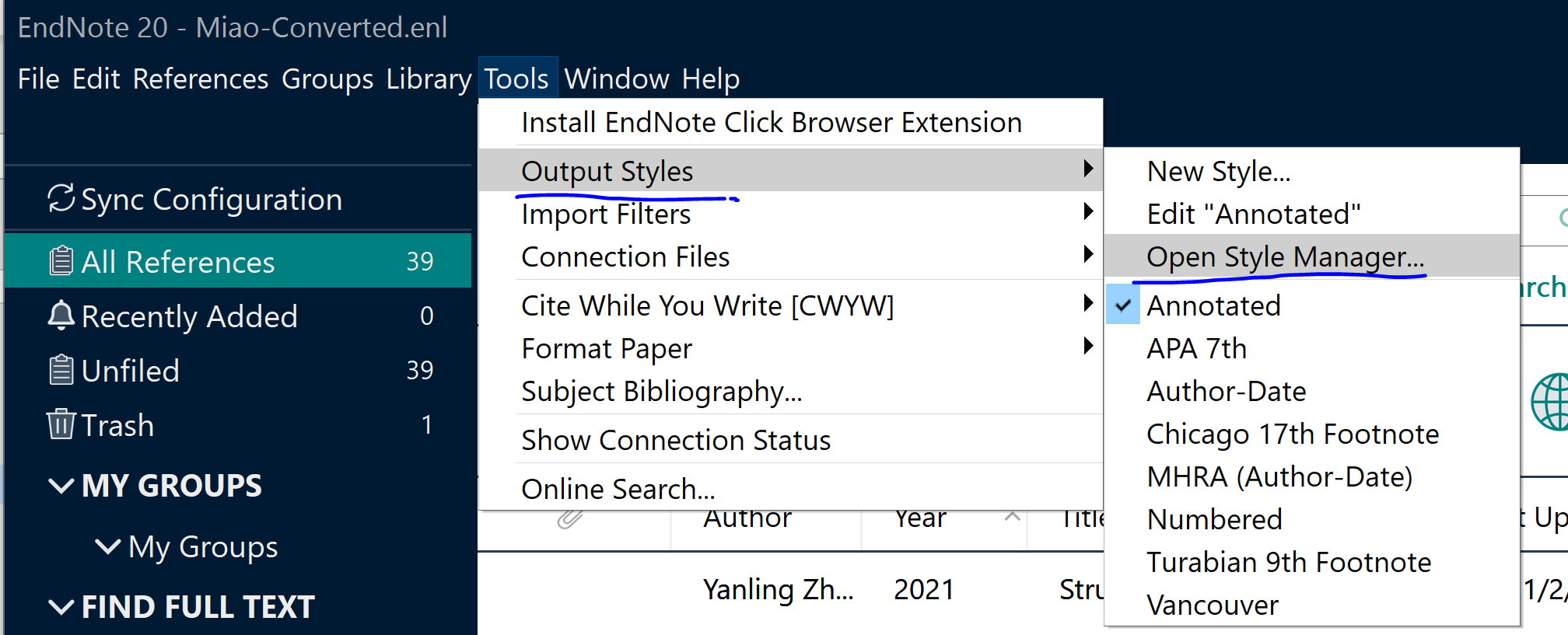
-
Select a style that is close to your requirements, or choose any template to modify. Here, we'll use
Numberedas an example. ClickEditto open the editing interface.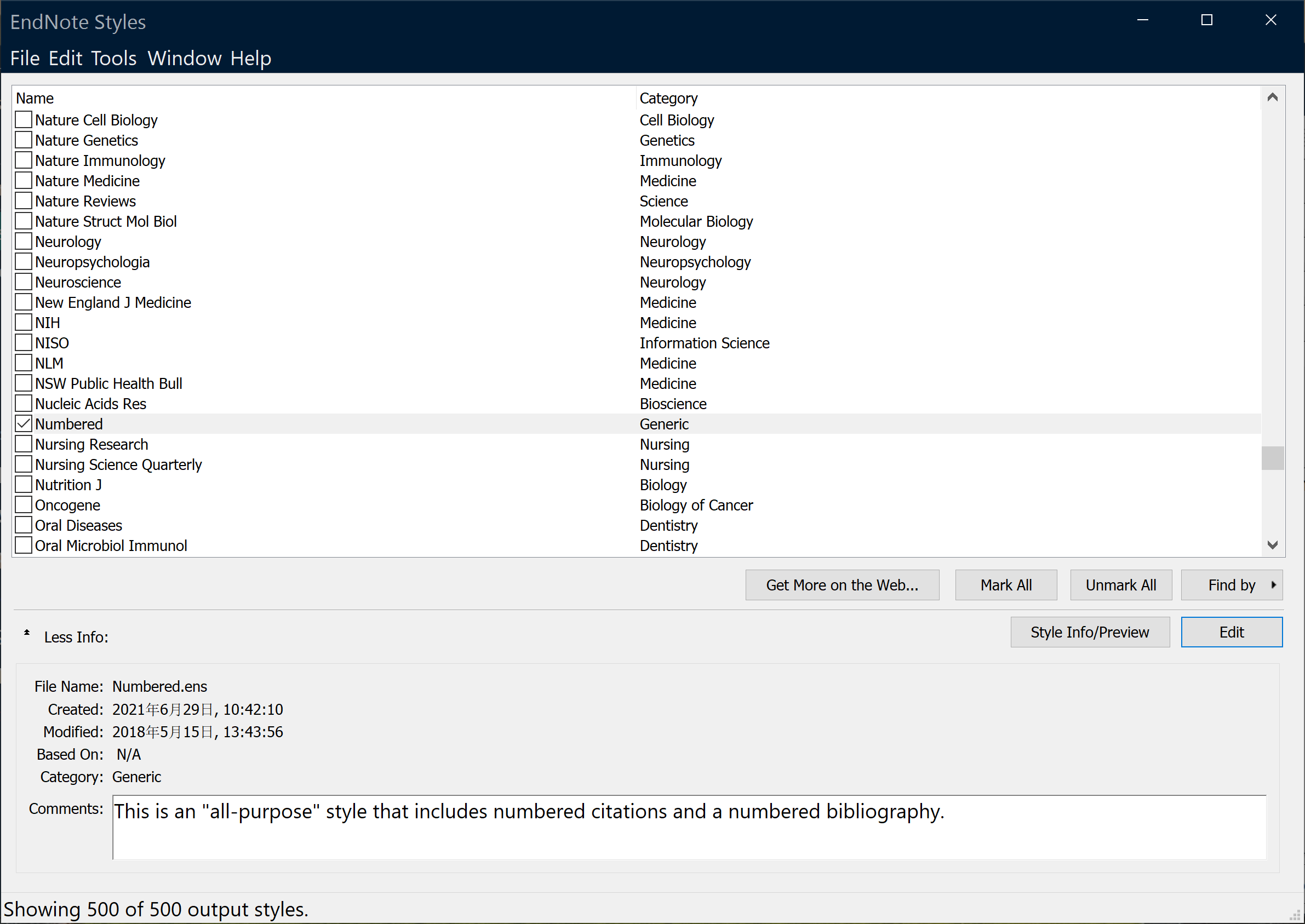
-
Commonly Modified Sections
-
Bibliography → Layout
Adjust the beginning format of the bibliography entry. For example, change the bibliography number to a number in square brackets.
-
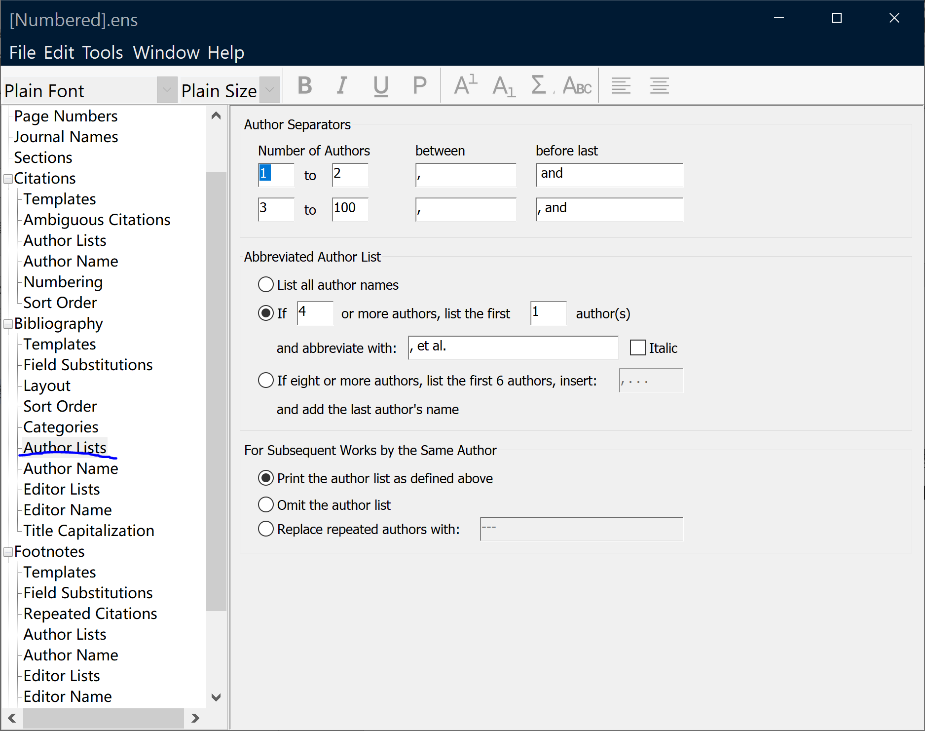
Author Lists
Set the rules for the number of authors to display and the use of "et al." or similar terms.
-
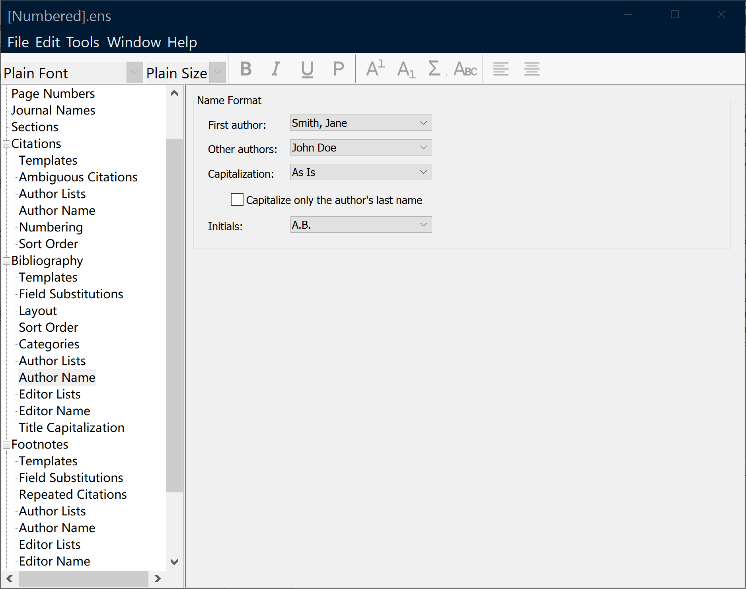
Author Name
Adjust the order and format of author names. -
Templates — Adjust the order of fields. Common templates include:
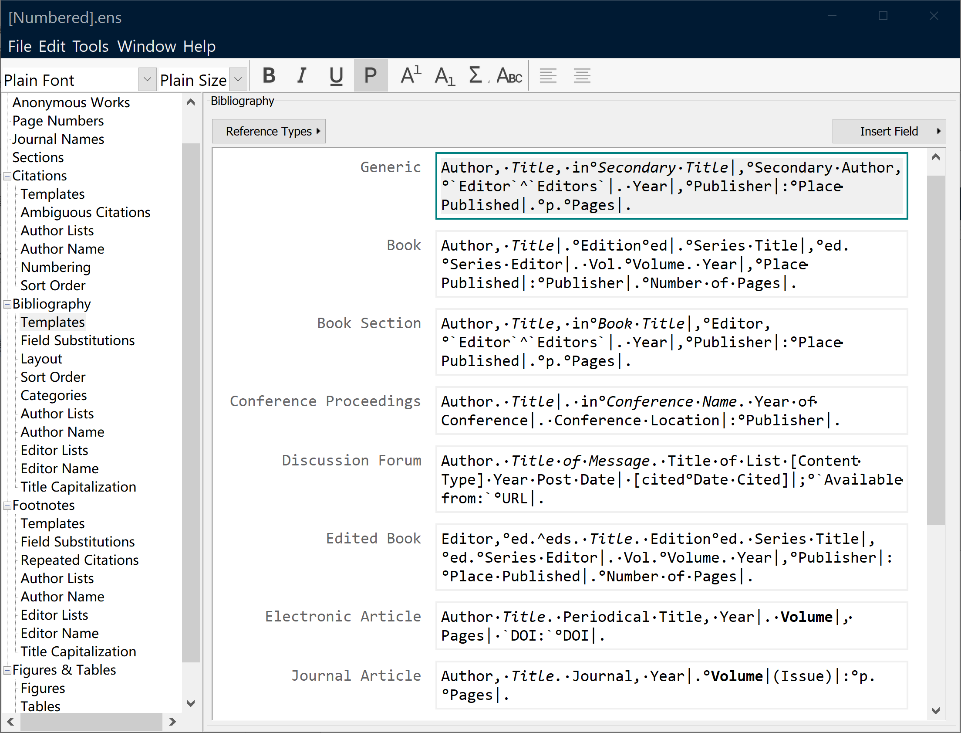
-
-
When finished, go to:
and save your changes as a new style.
After selecting your custom style in Word, click Update Citations and Bibliography to update the format of all references in your document with one click.